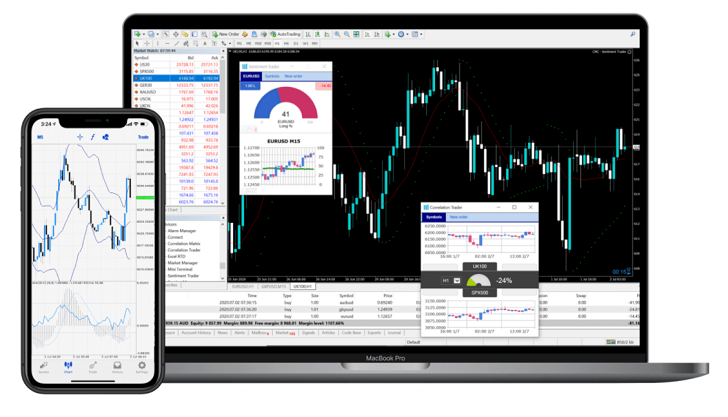
You can download it from MetaQuotes website free of charge or from your online broker once you create a real or demo account with them.
After downloading the file, double click it in order to begin the installation process.The installation process will then begin as shown below…
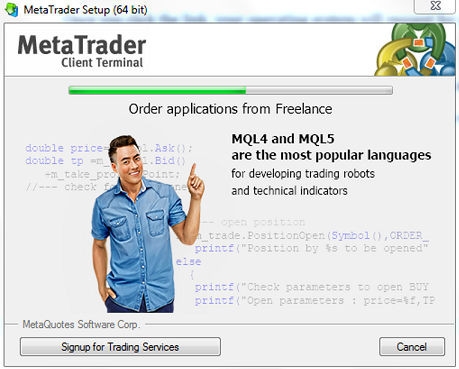
Congratulations! You will have installed MT4 on your device. By default, after clicking the Finish button, the MT4 terminal will be launched.
Once you launch the application, a small window will pop up at the middle of the platform. This is the server window. You will have the option of choosing between real money servers and demo money trading. Here you will choose to make a new demo account or insert the credentials from your broker to start live trading.
How to Trade using the MetaTrader4 Platform
Now that you have known how to setup the metatrader 4, it is time for you to know how to use it. After installing the platform, you will see the following window on your monitor…
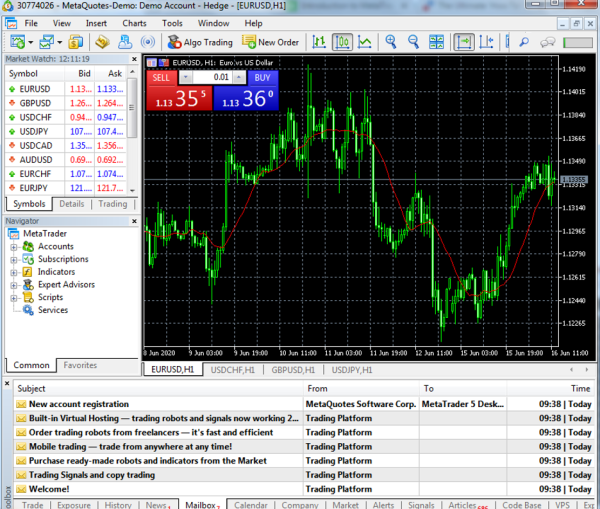
That is an example of a ready MT4 platform that has been setup and funded. As you can see, there are many buttons at the top of the MT4 platform.
You will be provided with the option of choosing the chart time frames. The time frame can be a minute, an hour, a day, a week or a month. It will be possible for you to change from one timeframe to another.
There are two magnifying glasses on the chart marked as + and -. These two help traders to zoom out and zoom in the trading charts without having to change the trading timeframe. There are three buttons on the left of the magnifying glasses. These help forex traders to choose the charting options that they need to use. Each button represents a different chart option. The possible chart options include the bar chart, Japanese candlestick, and a line chart.
You are also provided with a few basic drawing tools, and these are regularly needed when doing technical analysis. They include vertical line, horizontal line, price channel, trend line, Fibonacci retracement and a number of image labels. If you right click inside the chart, you will see various options that you can use to customize your trading platform. You can take some time in order to customize the settings to meet your trading requirements. If you right click inside the chart and point at the Trading option, you will see the options that permit you to enter a new trading position. This is shown in the figure given below…
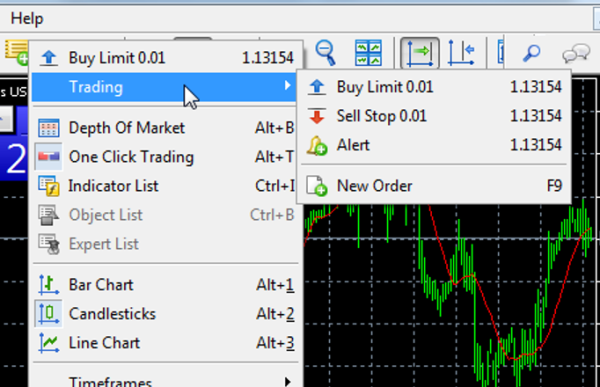
So, pointing to the Trading option gives the “New Order” option that can help you get into a new trade. This will open up a special trading window for you. However, the easiest way for you to bring up this new order window is by clicking the F9 hotkey on the keyboard of your computer. This will open up the window instantly and you will see the following…
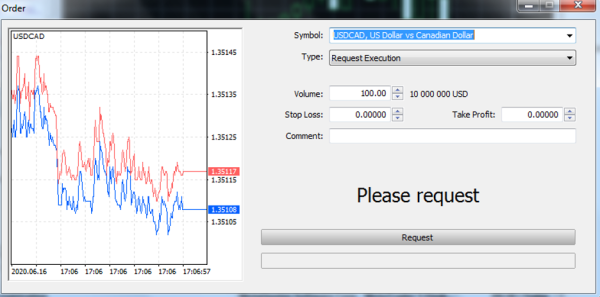
The first line is marked as “Symbol”. It is simply a drop down menu with all the symbols available for trading at the station of your broker. It allows you to change the forex pair to trade. Anytime that you need to change the forex pair, just click this dropdown and choose the option that you need. Of course, this dropdown has many forex pairs and a vertical scrollbar that allows you to scroll upwards and downwards to see the options that are available. Your role is just to pick the option that you want.
The next option is about the “Type”. It is also a dropdown menu with two options for you. One of the options is “Instant Execution”. If you choose this option, your order will be executed instantly. However, this will only come after you have filled in all the necessary fields and after you have clicked either Buy or Sell depending on the direction that you need your trade to take.
The second option is “Pending Order”. You should choose this type of order if you need the MT4 platform to implement a market entry once the price reaches a certain level on the chart.
The next line is marked as “Volume”.
This is where you should specify the trading volume. This is the amount in full that you want to invest in your trade. It is of importance for you to know that one full lot is equal to 100,000 units. You should also have your own risk management plan and respect it.
Next, we have the “Stop Loss” and “Take Profit”. The values that you set for these will determine your exit points from the trade. The Stop Loss helps you to specify the rate at which you can exit the trade in any case the market moves against you. The Take Profit helps you specify the rate for automatically closing your trade if the market moves in your favor.
Once you click all of these options, you will have completed the process of creating a new order.
For more detailed informations regarding the use of the Metatrader 4/5 app on the phone or laptop you can also search on youtube and watch lots of tutorials.